How to Download Backup from Cloudways: Step-by-Step Guide (2026)
Learn how to download backup from Cloudways using SFTP or SSH with this complete step-by-step guide. Discover how to enable local backups, download your website files safely, manage backup storage, and protect your website from data loss.
How to Download Backup from Cloudways (Complete Step-by-Step Guide)
Backing up your website is one of the most important tasks for any website owner. Whether you run a WordPress blog, WooCommerce store, business website, or web application, having a recent backup ensures you can recover your data in case of accidental deletion, hacking, server issues, or failed updates.
If you are wondering how to download backup from Cloudways, this detailed guide will walk you through every available method. Cloudways offers both automated off-site backups and local backups, making it easy to keep your website data safe. Once local backups are enabled, you can download them using either SFTP or SSH.
In this guide, you will learn how to enable local backups, download them safely to your computer, remove local backups when no longer needed, and understand the difference between local and off-site backups.
Important Links and Information
| Information | Details |
|---|---|
| Backup Methods | SFTP and SSH |
| Backup Type | Local Backup |
| Backup Location | /applications/your_application_name/local_backups |
| Cloudways Feature Required | Local Backups Enabled |
| Remote Access Required | Yes |
| Credentials Needed | Master Credentials |
| Backup Includes | Website Files + Database |
| Off-site Backup | Available Automatically |
| Latest Local Backup | Only One Copy Stored |
| Manual Backup Option | Take Backup Now |
| SSH Command | ssh master@server_ip |
| SCP Download Command | scp master@server_ip:/applications/app/local_backups/file /local/path |
| Recommended Download Method | SFTP for Beginners |
| Advanced Method | SSH |
What is Cloudways Backup?
Cloudways provides an automated backup system designed to protect your website data. These backups include:
- Website files
- Database
- Application configuration
- Web application data
There are two different backup types available.
Off-site Backups
These backups are stored securely on Cloudways' backup infrastructure and are created automatically according to your configured schedule.
Local Backups
Local backups are stored directly on your Cloudways server inside your application directory. These backups are useful when you need to download a copy quickly without restoring from remote storage.
When learning how to download backup from Cloudways, you will mainly work with local backups because they can be accessed directly through SFTP or SSH.
Why Download Your Cloudways Backup?
Downloading a backup provides an extra layer of protection.
Some common reasons include:
- Creating an offline copy
- Migrating to another hosting provider
- Testing on a local computer
- Keeping monthly archives
- Disaster recovery
- Website cloning
- Manual restoration
- Compliance requirements
Having a downloaded backup means you are not solely dependent on cloud storage.
Understanding Local and Off-Site Backups
Before proceeding, it is important to understand the difference.
| Feature | Local Backup | Off-site Backup |
|---|---|---|
| Stored On | Same Server | Cloudways Storage |
| Downloadable | Yes | Via Restore Process |
| Accessible via SFTP | Yes | No |
| Accessible via SSH | Yes | No |
| Storage Space Used | Server Disk | External Storage |
| Number of Copies | Latest Backup Only | Multiple Based on Retention |
Local backups are specifically designed for downloading and quick access.
Prerequisites Before Downloading Backup
Before following how to download backup from Cloudways, make sure you have:
- Cloudways account
- Server access
- Master Credentials
- SFTP client (such as FileZilla)
- SSH access (optional)
- Local backups enabled
- Enough storage space on your computer
Without enabling Local Backups, you cannot download the backup files directly.
Where Are Local Backups Stored?
Cloudways stores local backups inside your application folder.
The path is:
/applications/your_application_name/local_backupsInside this folder, you will find:
- Website files backup
- Database backup
Cloudways only keeps the latest local backup available.
For example:
- Backup created at 2:00 PM
- Another backup created at 4:00 PM
Only the 4:00 PM backup remains.
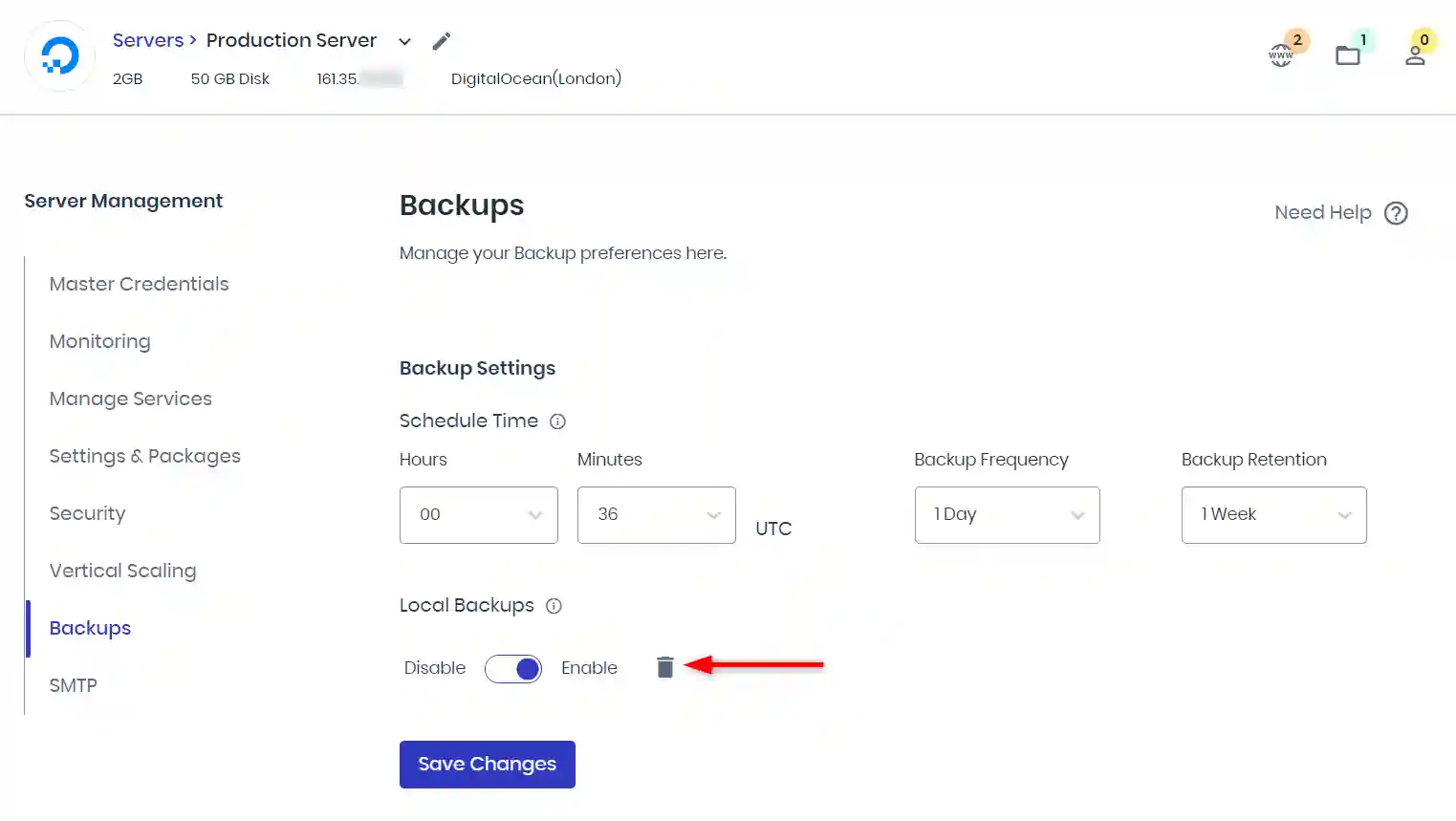
How to Enable Local Backups?
Before downloading anything, Local Backups must be enabled.
Follow these steps:
Step 1
Login to your Cloudways Dashboard.
Step 2
Open the Servers tab.
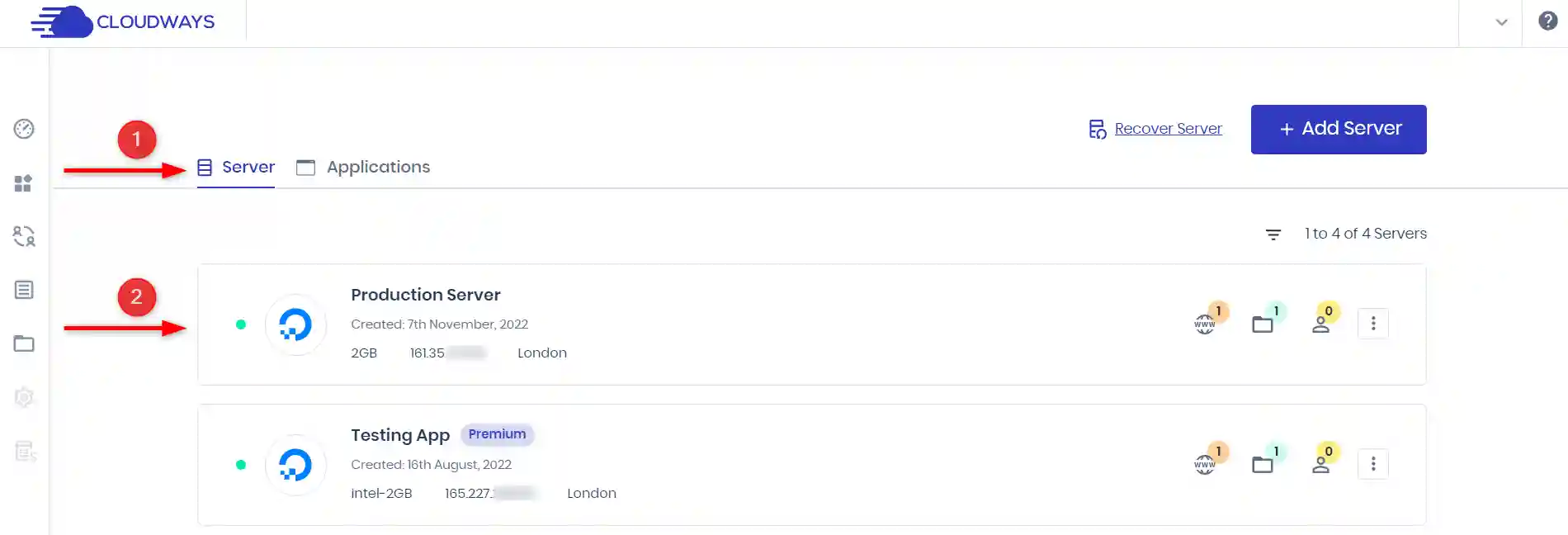
Step 3
Choose your target server.
Step 4
Click Backups from the left menu.
Step 5
Locate the Local Backups option.
Step 6
Enable the toggle.
Cloudways will now create local copies whenever scheduled backups run.
Step 7
Click Save Changes.
Step 8 (Optional)
Click Take Backup Now if you need an immediate backup.
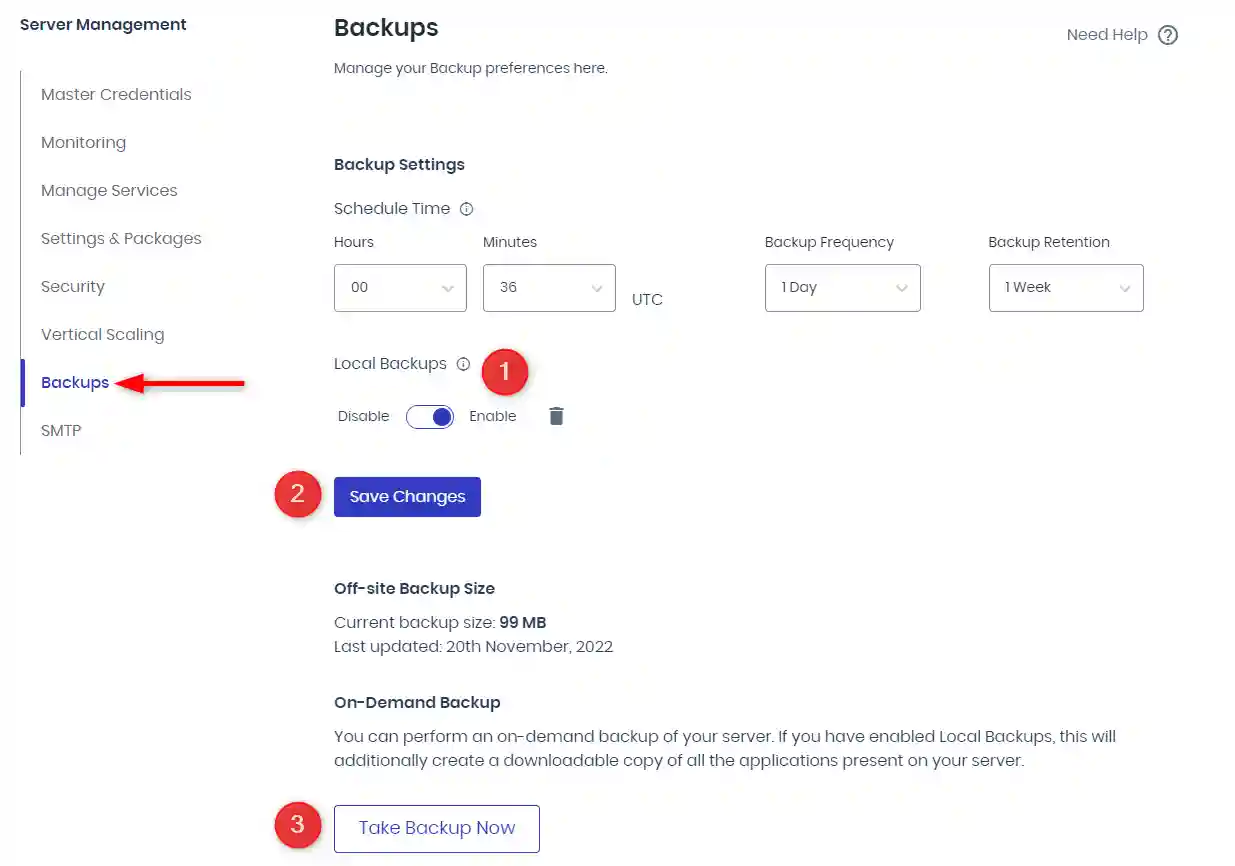
Otherwise, Cloudways will wait until the next scheduled backup.
How to Download Backup from Cloudways Using SFTP?
This is the easiest method for beginners.
Step 1
Open your preferred SFTP software.
Popular options include:
- FileZilla
- WinSCP
- Cyberduck
Step 2
Collect your Master Credentials.
You'll need:
- Server IP
- Username
- Password
These are available inside:
Server Management → Master Credentials
Step 3
Connect to your server.
Enter:
- Host
- Username
- Password
- Port 22
Click Connect.
Step 4
Navigate to:
/applicationsOpen your application folder.
Then open:
local_backupsStep 5
Locate the latest backup file.
Cloudways stores only the newest backup.
Step 6
Download the file.
Simply drag it to your desktop or another folder on your computer.
The download may take several minutes depending on backup size.
Step 7
Verify the backup.
Check:
- File size
- File integrity
- Download completed successfully
You have successfully completed how to download backup from Cloudways using SFTP.
How to Download Backup from Cloudways Using SSH?
Developers often prefer SSH because it is faster and works entirely through the terminal.
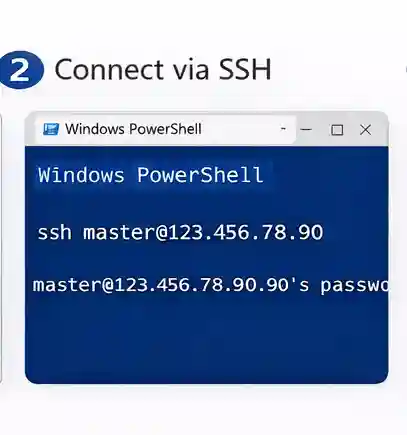
Step 1
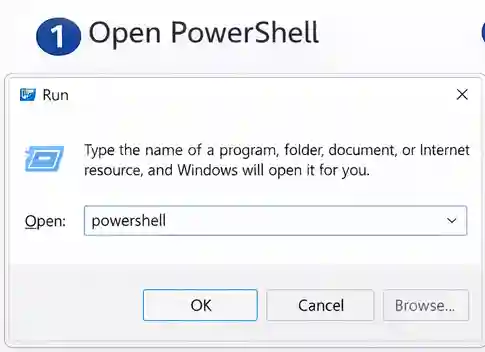
Open Windows PowerShell.
Press:
Windows + R
Type:
powershellPress Enter.
Step 2
Connect to your server.
Run:
ssh master@your_server_ipReplace:
- master
- your_server_ip
with your actual credentials.
Step 3
Enter your password.
After successful login, you will see the terminal prompt.
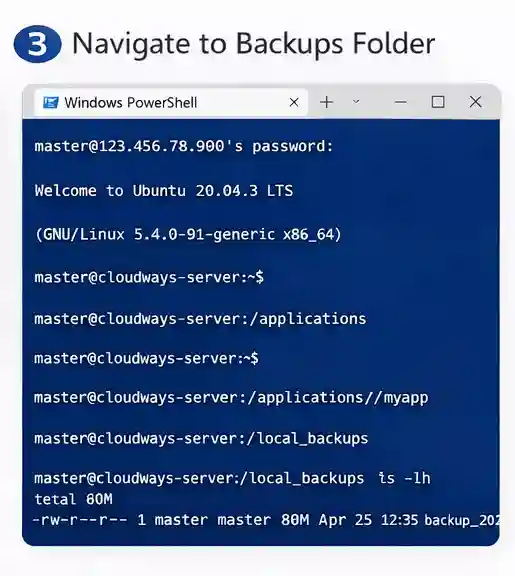
Step 4
Navigate to applications.
cd applicationsStep 5
List applications.
lsLocate your application.
Step 6
Open your application folder.
cd your_application_nameStep 7
Open local backups.
cd local_backupsStep 8
View backup files.
ls -lhThe newest backup will appear.
Step 9
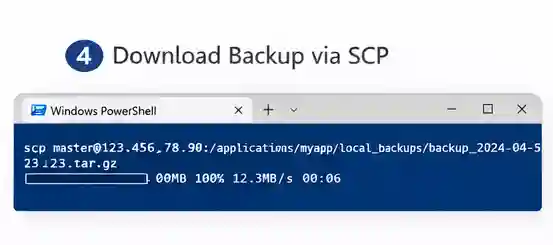
Open another PowerShell window.
Run:
scp master@your_server_ip:/applications/your_application_name/local_backups/backup_file_name C:\Users\YourUsername\DownloadsReplace:
- your_server_ip
- application name
- backup filename
- destination folder
Step 10
Enter your password.
The backup will begin downloading.
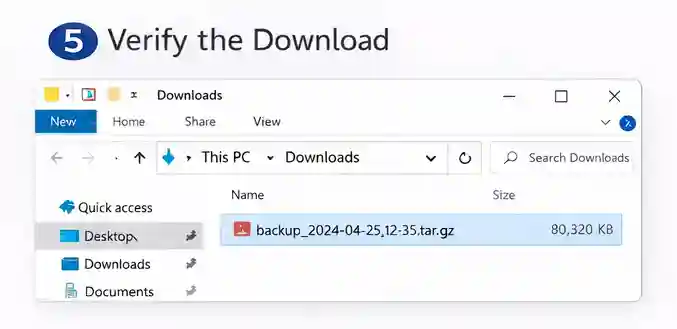
Step 11
Open your Downloads folder.
Verify the backup exists.
Congratulations. You now know how to download backup from Cloudways using SSH.
Understanding the SCP Command
The SCP command securely copies files between two systems.
General syntax:
scp username@server:/source/path destination/pathExample:
scp master@192.168.1.10:/applications/blog/local_backups/backup.tar.gz C:\Users\Admin\DownloadsBenefits include:
- Secure encryption
- Faster transfers
- Reliable downloads
- No graphical software required
How to Remove Local Backups?
Sometimes you may want to free server storage.
Cloudways makes this simple.
Steps
- Login to Cloudways
- Open your Server
- Go to Backups
- Find Local Backups
- Click the Trash icon
The local backup will be removed.
Important:
Only the local copy is deleted.
Your automated off-site backups remain completely safe.
Best Practices for Cloudways Backups
Follow these recommendations.
Download Important Backups
Keep offline copies before:
- WordPress updates
- Plugin installation
- Theme changes
- Server migration
Verify Backup Files
Never assume a download completed correctly.
Check:
- File size
- Archive integrity
- Extractability
Store Multiple Copies
Maintain backups on:
- External drive
- NAS
- Cloud storage
- Local computer
Create Manual Backups
Before making significant website changes, click:
Take Backup Now
This gives you the most recent restore point.
Monitor Storage
Local backups occupy server storage.
Delete them if unnecessary after downloading.
Common Problems While Downloading Backups
Backup Folder Empty
Possible reasons:
- Local backups disabled
- Backup not yet created
Solution:
Enable Local Backups and click Take Backup Now.
Authentication Failed
Possible reasons:
- Incorrect password
- Wrong username
Solution:
Verify Master Credentials.
Permission Denied
Possible reasons:
- Wrong account
- Limited permissions
Solution:
Use Master Credentials.
Slow Download
Large websites naturally require more download time.
Solutions:
- Stable internet connection
- Wired network
- Download during off-peak hours
SCP Not Working
Possible reasons:
- Incorrect path
- Typing errors
- SSH disabled
Verify:
- Application name
- Backup filename
- Server IP
Benefits of Local Backups
Local backups provide several advantages.
They are:
- Easy to access
- Fast to download
- Available through SFTP
- Accessible through SSH
- Ideal for migrations
- Useful for testing
- Excellent for offline storage
Should You Keep Local Backups Enabled?
It depends on your workflow.
Enable Local Backups if:
- You download backups regularly.
- You often migrate websites.
- You need offline archives.
- You frequently test development changes.
Disable them if:
- Server storage is limited.
- You only rely on automated off-site backups.
- You rarely download backup files.
Frequently Asked Questions

Verified Expert in deals and money-saving tips

No comments yet. Be the first to share your thoughts!