Can Cloudways Host Next.js Server-Side Rendering? Proven Guide
Can Cloudways host Next.js server side rendering? Yes. Learn how to deploy Next.js SSR on Cloudways, configure Node.js, connect GitHub, optimize performance, and handle domains, SSL, databases, and deployment.
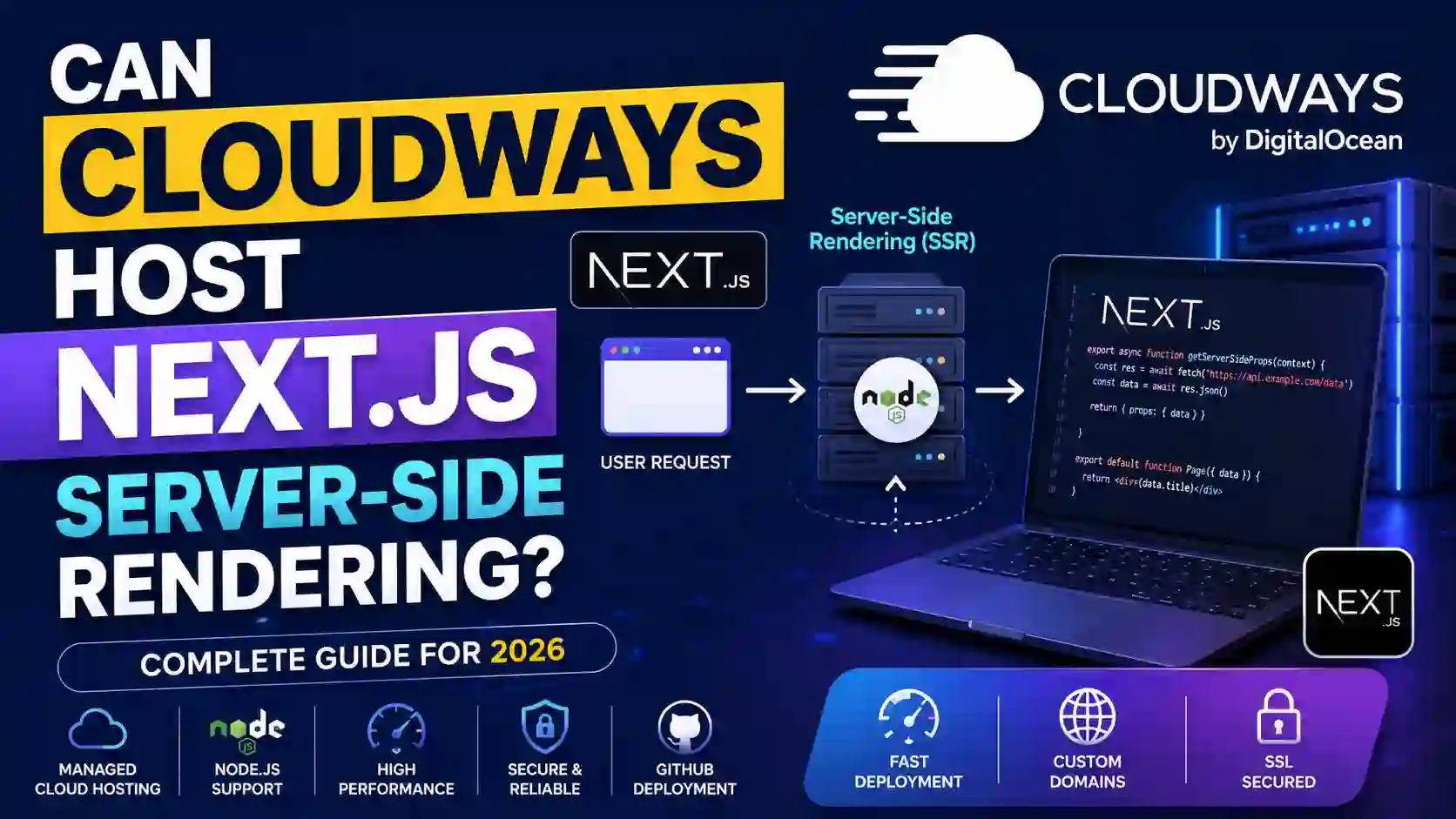
Can Cloudways Host Next.js Server-Side Rendering?
If you are building a Next.js website and wondering, can Cloudways host Next.js server side rendering, the short answer is yes. Cloudways can host Next.js applications that use server-side rendering (SSR), provided the hosting environment is configured to run a Node.js application correctly.
Next.js is a React framework designed for building full-stack web applications, and its production architecture can support server-side rendering, static generation, API routes, dynamic content, and other application features. The official Next.js documentation explains that Next.js can be deployed to hosting providers that support Node.js, with the production application built using next build and started using next start.
Cloudways has also introduced managed Node.js hosting in 2026. Its current Node.js hosting offering is described as an early-access private preview, with GitHub-based deployment and managed infrastructure.
This makes Cloudways an interesting option for developers who want to run a Next.js application without managing every part of the underlying server themselves.
In this guide, we will explain can Cloudways host Next.js server side rendering, how Next.js SSR works, what Cloudways provides, how deployment works, what configuration you need, potential limitations, performance considerations, and whether Cloudways is a good choice for your Next.js project.
Can Cloudways Host Next.js Server Side Rendering?
Yes, Cloudways can host a Next.js application that uses server-side rendering.
The important requirement is that your Next.js application needs a Node.js runtime capable of running the production Next.js server.
Next.js documentation states that Next.js can be deployed to any hosting provider that supports Node.js. For a traditional Node.js deployment, the application is built with:
npm run buildand started with:
npm run startThe production server can serve both statically generated pages and server-side rendered pages.
Cloudways now offers managed Node.js hosting designed specifically for Node.js applications. Cloudways describes this environment as a persistent managed environment where developers can deploy applications through GitHub while Cloudways handles much of the underlying infrastructure.
Therefore, if your Next.js application requires SSR, the underlying Node.js environment is the key requirement, and Cloudways provides a Node.js hosting environment for this type of application.
There is an important distinction, however: Cloudways' newer dedicated Node.js hosting capability is currently described in its documentation as being in Private Preview or Early Access. Availability may therefore depend on your Cloudways account and access to the feature.
What Is Next.js Server-Side Rendering?
Before discussing Cloudways, it is useful to understand what server-side rendering actually means.
In a traditional static website, the server can send a previously generated HTML file to the visitor.
With server-side rendering, the server generates the HTML for a request before sending the response to the browser.
For example, imagine that you have an ecommerce product page:
example.com/products/cloud-hostingWhen a visitor requests the page, the Next.js server can process the request, retrieve the required information, generate the HTML, and send the rendered page to the browser.
The browser then receives HTML that already contains the page content.
This can be useful for:
- Dynamic websites
- Ecommerce stores
- News websites
- Affiliate websites
- Personalized pages
- Product pages
- Dashboards
- Content websites
- Applications requiring dynamic server rendering
Next.js supports multiple rendering strategies, so you do not necessarily have to use SSR for every page.
A single Next.js application can contain statically generated pages, dynamically rendered pages, and other server-side functionality.
Why Does Next.js SSR Require Node.js Hosting?
A major reason people ask can Cloudways host Next.js server side rendering is because Next.js is different from a traditional PHP WordPress website.
A typical WordPress installation can run through a PHP application stack.
A Next.js SSR application needs a JavaScript runtime on the server.
Node.js provides that runtime.
When you execute:
npm run buildNext.js creates the production build.
When you execute:
npm run startthe Next.js production server starts and handles incoming requests.
The official Next.js documentation specifically explains that the next start server can serve hybrid applications containing both statically generated and server-side rendered pages.
This is why the hosting environment must support Node.js rather than only serving static HTML files.
Cloudways and Node.js Hosting
Cloudways has historically been known primarily as a managed cloud hosting platform, but its Node.js offering has expanded in 2026.
Cloudways' current Node.js documentation describes a dedicated Node.js application deployment process where users can choose a Node.js plan, connect a GitHub repository, configure the application, select a Node.js version, and deploy the application.
Cloudways also describes its managed Node.js offering as a persistent environment with managed infrastructure, security, and deployment capabilities.
This is particularly relevant for Next.js because SSR requires a persistent server process rather than simply uploading static files.
Important Cloudways and Next.js Information
| Item | Information |
|---|---|
| Focus keyword | can cloudways host next js server side rendering |
| Framework | Next.js |
| Runtime | Node.js |
| Rendering | Server-side rendering supported with a Node.js production server |
| Build command | npm run build |
| Start command | npm run start |
| Source control | GitHub deployment available in Cloudways Node.js hosting |
| Node.js version | Selectable during Node.js application setup |
| Deployment | Managed Node.js deployment |
| Domain | Custom domain can be connected |
| SSL | Production websites should use HTTPS |
| Server-side JavaScript | Supported through Node.js |
| Current Node.js Cloudways status | Private Preview / Early Access according to current Cloudways documentation |
| Best use cases | Next.js SSR, APIs, full-stack Node.js applications |
| Official Cloudways Node.js guide | Cloudways Help Center |
| Official Next.js documentation | Next.js Docs |
Cloudways' documentation explains that users can select their Node.js version, root directory, GitHub repository, branch, framework settings, and other deployment settings.
How to Host a Next.js SSR Application on Cloudways?
The exact Cloudways interface can change as its Node.js hosting product develops, but the general deployment process follows the standard Next.js production workflow.
Step 1: Create Your Next.js Application
If you do not already have a Next.js project, create one locally.
A typical project can be created using the Next.js tooling.
Your application will normally contain files and directories similar to:
my-next-app/
├── app/
├── public/
├── package.json
├── next.config.js
└── ...
The exact structure depends on whether your project uses the App Router or Pages Router and which Next.js version you are using.
Step 2: Configure Your Package Scripts
Your package.json should contain the appropriate production commands.
A typical setup looks like:
{
  "scripts": {
    "dev": "next dev",
    "build": "next build",
    "start": "next start"
  }
}
Next.js officially documents the build and start workflow for self-hosted deployments.
If your hosting environment provides a PORT environment variable, you can configure the start command accordingly when required.
For example:
{
  "scripts": {
    "build": "next build",
    "start": "next start -p $PORT"
  }
}
The exact configuration should match the hosting platform's deployment requirements.
Step 3: Push Your Application to GitHub
Cloudways' current Node.js deployment process supports importing a GitHub repository.
Cloudways' documentation describes a workflow in which users connect GitHub, select a repository, select the relevant branch, and configure deployment settings.
Therefore, you can push your Next.js application to a GitHub repository before deploying it.
For example:
git init
git add .
git commit -m "Initial Next.js application"
git branch -M main
git remote add origin YOUR_REPOSITORY_URL
git push -u origin main
Do not upload sensitive credentials such as production API keys or database passwords into the repository.
Instead, use environment variables.
Step 4: Launch a Node.js Application on Cloudways
Cloudways' current Node.js documentation says that users can select Node.js from the Cloudways Platform and start the application launch process.
From the Node.js deployment area, you can select the appropriate plan.
Cloudways documents that the plan selection can include resources such as:
- vCPU
- RAM
- Disk
- Network capacity
- CDN-related features
- DDoS protection
- Malware protection
The exact plans and pricing can change as the Node.js product moves through its availability stages.
For a small Next.js project, you can generally start with an appropriate lower-resource configuration and monitor resource usage before scaling.
Step 5: Connect Your GitHub Repository
After selecting your Node.js hosting configuration, choose the GitHub repository containing your Next.js project.
Cloudways provides a repository selection process as part of its Node.js application deployment workflow.
Make sure you select:
- Correct repository
- Correct branch
- Correct root directory
- Correct Node.js version
If your Next.js application is located in a subdirectory of a monorepo, the root directory becomes particularly important.
Step 6: Select the Node.js Version
Next.js applications depend on Node.js compatibility.
When deploying, select a Node.js version that is compatible with your Next.js version and dependencies.
Cloudways' Node.js application setup currently provides a Node.js version selection option, including Node 22 LTS in its documented examples.
Do not automatically select the newest Node.js release simply because it is newer.
Check your application's requirements first.
Your package.json, Next.js version, dependencies, and third-party packages should all be considered.
Step 7: Configure the Build
The Next.js production build normally runs:
npm run buildThis creates the production output required by Next.js.
For an SSR application, the important point is that you should deploy the application as a Node.js application rather than treating it as a collection of static HTML files.
Cloudways' Node.js deployment workflow includes build and output settings that can be reviewed before deployment.
Step 8: Start the Next.js Production Server
After the build completes, your application needs to start its production server.
The standard Next.js command is:
npm run startThis launches the production Next.js server.
For SSR, this server needs to remain available so it can process incoming requests.
This is one of the biggest differences between a static Next.js website and an SSR application.
A static site can often be deployed to a static hosting service.
An SSR application needs server-side execution.
Step 9: Connect Your Domain
After deployment, Cloudways provides a way to manage the application and connect a domain.
Cloudways' Node.js application overview documentation states that the application dashboard can be used to connect domains, monitor resources, manage databases, backups, deployments, and application settings.
For example:
www.example.comcan point to your Cloudways-hosted application.
You will also need to configure DNS correctly with your domain provider.
Step 10: Enable HTTPS
Your production Next.js website should use HTTPS.
HTTPS protects communication between visitors and your website and is especially important for websites handling:
- Login information
- Customer data
- Payment information
- API requests
- Forms
- Authentication cookies
The exact SSL configuration depends on the Cloudways Node.js environment available to your account.
Always test your final domain using HTTPS before launching the website publicly.
Next.js SSR vs Static Generation
One important concept to understand is that Next.js does not force you to choose between an entirely static website and an entirely server-rendered website.
You can use different rendering approaches within the same application.
For example:
| Page | Possible Rendering |
| Homepage | Static or dynamic |
| About page | Static |
| Blog article | Static or dynamic |
| Product page | SSR or static |
| User dashboard | Dynamic |
| Account page | Dynamic |
| Search results | Dynamic |
| API endpoint | Server-side |
| Marketing landing page | Static |
This flexibility is one of the major advantages of Next.js.
The question can Cloudways host Next.js server side rendering is therefore really a question about whether Cloudways can run the Node.js production server required by the Next.js application.
With its Node.js hosting environment, the answer is yes, subject to the availability and configuration of the Node.js product for your account.
What Is the Difference Between SSR and Static Next.js Hosting?
Suppose you have a Next.js website with 100 pages.
If all pages can be generated ahead of time, you may be able to deploy a static output.
But imagine that you have a page showing:
Current product price
Current stock
User-specific information
Live API data
That page may require server-side processing.
With SSR, the Next.js server can process the request and generate the response dynamically.
A static deployment does not work the same way because the HTML has already been generated.
Therefore, if your application specifically requires server-side rendering, you need an appropriate Node.js hosting environment.
Can Cloudways Host Next.js App Router?
Next.js has evolved considerably, and modern applications frequently use the App Router.
The App Router supports modern Next.js features such as server components, dynamic rendering, layouts, and other application capabilities.
Whether every specific Next.js feature works correctly depends on the Next.js version, Node.js version, application configuration, dependencies, and Cloudways deployment environment.
The important requirement is that your hosting environment must correctly run the Next.js production application.
Cloudways' Node.js hosting provides the underlying Node.js environment needed for this type of deployment.
Before moving a production application, it is recommended to deploy a staging version first and test all of your application functionality.
Can Cloudways Host Next.js API Routes?
A Next.js application can include server-side functionality in addition to its frontend.
Next.js documentation describes the production Node.js server as supporting API Routes alongside statically generated and server-side rendered pages in the Pages Router deployment model.
Therefore, a Next.js project that includes server-side API functionality can be deployed to a suitable Node.js environment.
However, you should check the architecture of your specific application.
If your project depends on external services, WebSockets, background workers, cron jobs, queues, or specialized infrastructure, you may need additional configuration.
Environment Variables for Next.js on Cloudways
Environment variables are extremely important when deploying Next.js.
Your local machine might contain:
DATABASE_URL
API_SECRET
NEXT_PUBLIC_API_URL
STRIPE_SECRET_KEY
Do not hardcode sensitive values directly into your source code.
Instead, configure production environment variables through the hosting environment.
For example:
DATABASE_URL=your-production-database
API_SECRET=your-secret-value
NEXT_PUBLIC_API_URL=https://api.example.com
Remember that variables beginning with NEXT_PUBLIC_ are intended to be exposed to the browser.
Never put private secrets into NEXT_PUBLIC_ variables.
Database Considerations
Your Next.js SSR application may require a database.
Common choices include:
- PostgreSQL
- MySQL
- MariaDB
- MongoDB
- External managed databases
The correct database depends on your application architecture.
For example, a Next.js ecommerce application might use PostgreSQL or MySQL, while another project might use a third-party database service.
Cloudways' Node.js application dashboard provides database-related management capabilities according to its current documentation.
However, database architecture should be planned separately from the Next.js frontend.
A database that is geographically far away from your application server can introduce additional latency.
Next.js SSR Performance on Cloudways
Performance depends on more than your hosting provider.
A Next.js application can still be slow if the application code is poorly optimized.
Important performance factors include:
- Server resources
- Database response time
- API response time
- JavaScript bundle size
- Image optimization
- Caching
- Rendering strategy
- Third-party scripts
- Database queries
- Server location
- CDN configuration
If your SSR page performs five slow API requests before returning HTML, upgrading the server alone may not completely solve the problem.
Application optimization is therefore essential.
Choose a Server Location Close to Your Visitors
Server location can influence latency.
If most of your visitors are in the United States, choosing an appropriate US region can reduce network distance.
If most visitors are in Europe, a European region may make more sense.
Cloudways' Node.js deployment documentation specifically recommends selecting a server location close to the majority of your visitors to help reduce loading time.
For an international website, you may also consider CDN-based delivery for static assets.
Use Caching Carefully With SSR
Caching is one of the most important considerations for SSR.
Imagine that your website has a product page that receives thousands of visitors.
Generating the entire page from scratch for every visitor may consume unnecessary server resources.
Where appropriate, caching can reduce repeated server-side work.
However, caching dynamic content requires careful planning.
You do not want one user's personalized information accidentally being served to another visitor.
Therefore, caching strategies should consider whether a page is:
- Public
- Personalized
- Authenticated
- Frequently updated
- Rarely updated
- API-dependent
Is Cloudways Good for a Next.js Website?
Cloudways can be a good option for developers who want managed infrastructure instead of managing an unmanaged VPS.
Its newer managed Node.js environment is specifically aimed at Node.js applications and includes deployment and infrastructure-management features.
The biggest benefit is convenience.
Instead of manually configuring an entire server, developers can use the Cloudways platform to deploy and manage the application.
This can be especially useful for:
- Agencies
- Developers
- SaaS projects
- Business websites
- Next.js applications
- Ecommerce projects
- Client applications
- Full-stack JavaScript applications
However, Cloudways may not be the perfect choice for every Next.js project.
If you need highly specialized infrastructure or complete server-level control, another hosting architecture may be more appropriate.
Cloudways vs Traditional VPS for Next.js
An unmanaged VPS gives you considerable control.
You can configure:
- Nginx
- Node.js
- PM2
- Firewall
- SSL
- Monitoring
- Databases
- Deployment pipelines
- Operating system
- Networking
But you are responsible for maintaining everything.
With managed hosting, much of that infrastructure responsibility is reduced.
| Feature | Managed Cloudways Node.js | Unmanaged VPS |
| Node.js | Managed environment | You configure it |
| Server maintenance | Provider-managed | You manage |
| Deployment | Simplified | Manual/CI setup |
| Security maintenance | Managed components | Your responsibility |
| SSL | Platform-dependent setup | You configure |
| Monitoring | Managed tools | You configure |
| Server control | Lower | Higher |
| Technical responsibility | Lower | Higher |
| Best for | Developers wanting convenience | Experienced server administrators |
The choice depends on how much infrastructure management you want to handle yourself.
What About the Older Cloudways Node.js Method?
Cloudways also has documentation describing an older approach for hosting Node.js applications using a PHP application environment, SSH/SFTP, port forwarding through mod_proxy, and PM2.
That method is important historically because it demonstrates that Cloudways environments could be configured to run Node.js applications even before the newer managed Node.js product.
However, Cloudways now has a dedicated Node.js hosting workflow in Private Preview/Early Access, so developers should evaluate the newer Node.js product where it is available rather than automatically following older tutorials.
This distinction is particularly important because Cloudways' product architecture and deployment interface are evolving.
Can Cloudways Host Next.js Server Side Rendering Without PM2?
With the newer managed Node.js hosting product, Cloudways handles more of the application infrastructure than the older manual deployment method.
The older Cloudways Node.js tutorial specifically recommends PM2 because a Node.js process started directly from an SSH session would stop when the session ends.
The newer managed Node.js product is designed to simplify this type of infrastructure management. Cloudways describes it as managed Node.js hosting where the platform handles infrastructure and deployment plumbing.
Therefore, you should follow the deployment method associated with the Node.js product available in your account instead of manually adding infrastructure components unnecessarily.
Common Problems When Hosting Next.js SSR
Even when the hosting platform supports Node.js, deployment problems can occur.
Incorrect Node.js Version
Your application may depend on a Node.js version that differs from the server.
Check your Next.js documentation and project dependencies.
Incorrect Start Command
If the server does not run:
npm run startyour application may fail to become available.
Make sure the production start command is configured correctly.
Missing Environment Variables
An application may work locally but fail in production because required environment variables were not configured.
Check all required production variables.
Incorrect Root Directory
This is especially common in monorepos.
If your Next.js project is located at:
/apps/frontendbut Cloudways is configured to use:
/the build may fail.
Build Errors
Run the production build locally:
npm run buildFix build errors before deploying.
Database Connectivity
Make sure your production application can reach its database.
Check:
- Host
- Port
- Username
- Password
- Database name
- SSL requirements
- Firewall restrictions
How to Test a Next.js SSR Deployment?
After deploying your application, test more than the homepage.
Check:
- Homepage
- Dynamic pages
- SSR pages
- API endpoints
- Forms
- Authentication
- Database queries
- Images
- Static assets
- Mobile layout
- Error pages
- Environment variables
- HTTPS
- Custom domain
- Redirects
You should also test the website after a new Git deployment.
Cloudways' current Node.js deployment workflow provides deployment information and application management options through its platform.
Important Links and Resources
| Resource | What It Is Useful For |
| Cloudways Node.js Hosting | Learn about Cloudways managed Node.js hosting |
| Cloudways Node.js Launch Guide | Learn how to launch and deploy a Node.js application |
| Cloudways Node.js Overview | Manage domains, deployments, backups, resources and settings |
| Next.js Documentation | Official Next.js framework documentation |
| Next.js Hosting Guide | Understand self-hosted Next.js deployment |
| Cloudways Node.js Tutorial | Older Node.js deployment approach and PM2 configuration |
The official Cloudways Node.js hosting page explains its managed Node.js offering, while the Cloudways Help Center provides the current application launch and management documentation.
The official Next.js documentation explains the framework and its deployment model, including deployment to Node.js-compatible hosting providers.
Conclusion
So, can Cloudways host Next.js server side rendering?
Yes.
Next.js SSR requires a server environment capable of running the Next.js production server through Node.js. The official Next.js documentation confirms that Next.js can be deployed to hosting providers supporting Node.js, with next build used to create the production build and next start used to run the production application.
Cloudways now provides a managed Node.js hosting environment designed for Node.js applications. Its current deployment workflow allows users to connect a GitHub repository, choose a Node.js plan and version, configure build settings, select a server location, and deploy the application.
This makes Cloudways a potential hosting option for Next.js applications that use server-side rendering.
However, there is an important consideration: Cloudways currently describes its dedicated Node.js hosting product as being in Private Preview/Early Access. Therefore, availability may vary depending on your account and access to the product.
For a simple static Next.js website, you may not need a persistent Node.js server at all. But if your application requires SSR, dynamic server rendering, server-side APIs, authentication, database access, or other server-side functionality, a Node.js hosting environment becomes much more relevant.
Before deploying a production website, test your Next.js application carefully, verify your Node.js version, configure environment variables, test your database connections, configure your custom domain and HTTPS, and monitor server resources.
For developers who want Next.js SSR while avoiding the complexity of manually configuring and maintaining an entire server, Cloudways' managed Node.js environment can be an attractive option to evaluate.
Frequently Asked Questions
npm run start
which normally runs the next start command. Next.js documents this as part of its self-hosted deployment workflow.

Verified Expert in deals and money-saving tips




No comments yet. Be the first to share your thoughts!